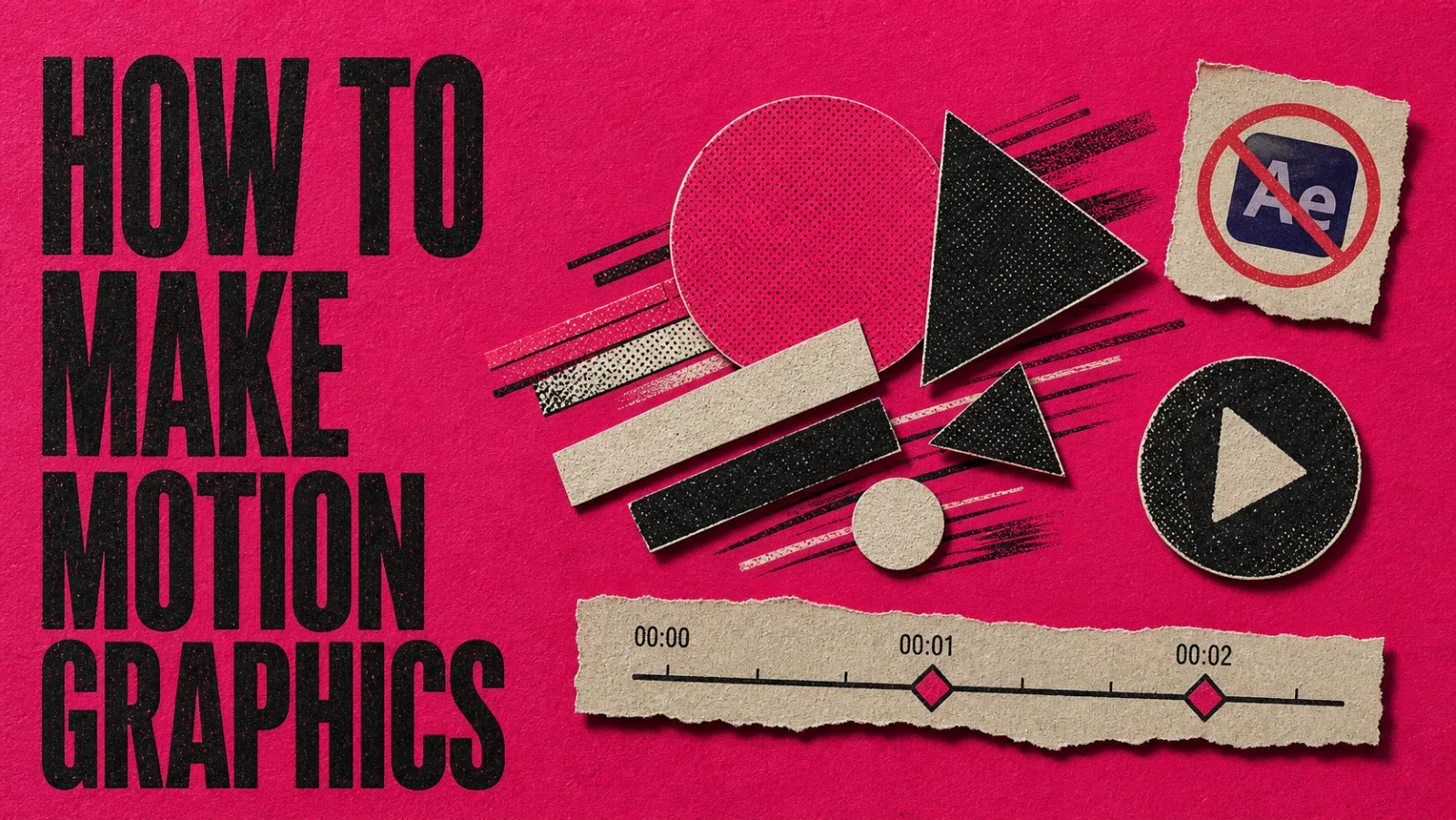
Motion graphics (often shortened to “mograph”) are animated text, shapes, icons, charts and logos layered over or between video. Titles, lower thirds, callouts, animated diagrams and logo outros are all motion graphics. They’re how a video explains what a camera can’t film: a process, a number, a comparison, a name.
Making them used to mean learning After Effects. Today you can build them with keyframes in a free editor, start from a template, or describe the graphic and let an AI generate an editable version. The tool matters less than the process, and most bad motion graphics come from skipping the first and last steps below.
Key Takeaways
- Decide what the graphic has to explain before deciding how it moves. If movement doesn’t carry information, cut it.
- Build a small system first: one or two font weights, a short palette, one entrance style. Consistency reads as polish.
- Use graphics for what’s abstract or expensive to film; keep real people and real product footage where trust matters.
- Review every graphic inside the actual edit, at phone size, with captions on. That’s where most problems show up.
- AI tools speed up the drafting, not the judgment. You still supply the facts, the hierarchy and the final review.
When to Use Motion Graphics (and When Not To)
Motion graphics earn their place when the subject is abstract, repetitive or expensive to shoot: how a feature works, the steps of a process, a statistic, a timeline, a comparison, a recurring series intro. A three-step process (“Upload, Review, Export”) with arrows and labels is clearer animated than described.
They’re weaker where human presence carries the message: a founder explaining why they built something, a customer describing a result, a documentary moment. There, the best graphics are small ones, like a name, a number or a callout, layered over footage rather than replacing it.
A useful test: for each graphic you plan, ask what information it adds. If the answer is “it looks dynamic,” it’s decoration, and decoration competes with the speaker.
Tools for Making Motion Graphics
After Effects: the professional standard
Adobe After Effects is the industry tool for animated text and graphics, 3D, presets and reusable templates that editors can adjust in Premiere. It can do almost anything, and it takes real time to learn. Choose it if motion design is part of your job, or if you’re delivering templates to other editors. It’s sold by subscription; check Adobe’s current pricing in your region.
DaVinci Resolve (Fusion): free and node-based
DaVinci Resolve includes Fusion, a node-based compositing and motion graphics page, in its free download. You get keyframes, splines and full control without paying, at the cost of a steeper learning curve than template tools. Some advanced effects are reserved for the paid Studio version.
Canva: templates and simple animation
Canva’s animation tools cover motion paths, animated text and templates, which is enough for social posts, simple intros and branded explainers. Content made with free elements exports without a watermark; premium elements need a paid plan. It’s the quickest route for non-designers, with less precise timing control than a keyframe editor.
CapCut: keyframes in a social editor
CapCut’s desktop editor supports keyframes for position, scale, rotation and opacity, plus text animations, which is enough for many callouts and titles in short-form video.
ChatCut: describe the graphic, then edit it
In ChatCut you describe a graphic (content, hierarchy, colors, animation, duration, position) and the agent generates it as an editable motion graphic on your timeline. You can start from Templates for titles, lower thirds and charts, apply a Design Style so later graphics share a look, and revise by stating exactly what should change. In ChatCut Desktop 0.3.13 or later you can also click text and other elements in the Viewer to edit them directly.
ChatCut runs as a desktop app for macOS 13+ and Windows 10+, as a web app, and inside agents such as Claude Code and Codex. Generating motion graphics uses credits, and transparent ProRes 4444 export of individual graphics is a paid feature; see Free and Pro.
How to Make Motion Graphics, Step by Step
Step 1: Define the job and the format
Write one line per graphic: what it must explain, where it appears, and for how long. “Lower third: speaker name and title, 00:04, while she’s introduced.” “Process graphic: Upload → Review → Export, 00:18, six seconds.” Decide the frame first, too: a 9:16 Short needs larger text and tighter layouts than a 16:9 upload.
Expect to revise. Graphics are part of the video’s structure, not polish added at the end, so plan them while you edit rather than after you lock the cut.
Step 2: Choose your route
- Keyframes by hand (After Effects, Resolve, CapCut) when you need exact control and have time to learn.
- Templates (Canva, ChatCut Templates, After Effects templates) when a standard title, lower third or chart fits.
- AI generation (ChatCut) when you want a custom graphic quickly and are ready to review it carefully.
Step 3: Build a small visual system
Before animating anything, decide:
- Type: one typeface, one or two weights, a clear hierarchy (headline, subhead, supporting text).
- Color: two or three colors plus a neutral, taken from your brand or the footage.
- Behavior: one entrance and exit style used everywhere, such as a short slide-up and fade.
- Assets: final text, verified numbers, logos, icons and screenshots, gathered in one place.
A small system is what makes several graphics look like they belong to the same video. In ChatCut, saving it as a Design Style applies it to graphics you generate afterward; check Templates first in case one already fits.
Step 4: Animate
Keep animation arcs short for labels and lower thirds, and give anything with reading in it enough time on screen to be read twice. Move one thing at a time: if a title, an icon and a background all enter at once, the eye doesn’t know where to go. Stagger them.
With AI, the same rules go into the prompt. Specific prompts produce specific graphics:
For revisions, change one property at a time and say what must stay: “Make the title enter more slowly; keep the timing and colors the same.”
Step 5: Review it in the edit
Graphics that look good on their own often fail next to footage. Watch the full video, then check:
- One focal point. Nothing competes with the speaker’s face or the product at the moment it matters.
- Readability at phone size. No thin fonts, long lines or tiny labels. Cut copy until it reads at a glance.
- Captions. The graphic doesn’t overlap or fight the subtitles.
- Timing. Text appears with the words it supports, stays long enough to read, and lands on cuts or beats rather than against them.
- Accuracy. Every number, name and label matches your source. Never let a tool invent data for a chart.
- Restraint. If a shot feels busy, delete a motion, a font or a transition before adding anything.
Step 6: Export
Export the finished video as MP4 for social and web. When an editor or client needs graphics on their own, export them with transparency: in ChatCut, Export → Graphics produces a transparent ProRes 4444 file per graphic on paid plans; see Export Transparent Motion Graphics.
Can AI Make Motion Graphics?
Yes, with a human in the loop. AI tools can generate titles, lower thirds, callouts, charts and animated diagrams from a description, and revise them when you say what to change. What they can’t supply is your judgment: which number matters, what the hierarchy should be, whether the graphic helps or distracts. Give the AI final text and verified data, review the result in context, and treat the first version as a draft.
How to Make Motion Graphics for Free
- DaVinci Resolve includes Fusion in its free version, with full keyframe control. Some advanced effects need Studio.
- Canva’s free plan handles simple animated text and templates; designs made with free elements export without a watermark.
- CapCut has keyframes and text animations in its free editor; Pro assets and some exports need a subscription.
- ChatCut’s free plan includes the editor, transcription, captions and up to 60 minutes of cloud exports; generating graphics uses credits, and new accounts get a starting allowance shown in the account.